Help and guide The app and the web, explained end to end.
53 topics · press ⌘K or / to search from anywhere on this page.
01 · Getting started
Getting started
StandPoint is the members' app for a private investment club, the desk in your pocket. Everything below walks you from creating your account through to signing in and finding your way around.
Taxable or retirement
The model portfolio sits in either. The single names turn over in about a fortnight, which matters more in a taxable account.
The model portfolio is index funds you hold yourself, so it sits in either.
The single names turn over in about a fortnight, which matters more in a taxable account than an IRA. Not tax advice.
If one stock dominates
Employer stock, founder equity, or a position that simply ran. Add it to My Book and the X-ray reads it with the method the books use.
Employer stock, founder equity, or a position that simply ran.
Add it to My Book and the X-ray reads it with the method the books use, whether or not it appears in them.
Against direct indexing
The model portfolio is the index core, not a rival to it. If you already direct-index, you may only want the core.
The model portfolio is the index core, not a rival to it.
If you already direct-index, the picks are the satellite around what you hold. You may only want the core.
What StandPoint is
A private investment club sold by the book: the S&P Book, the Nasdaq Book and the Europe Book, guided by Salomon.
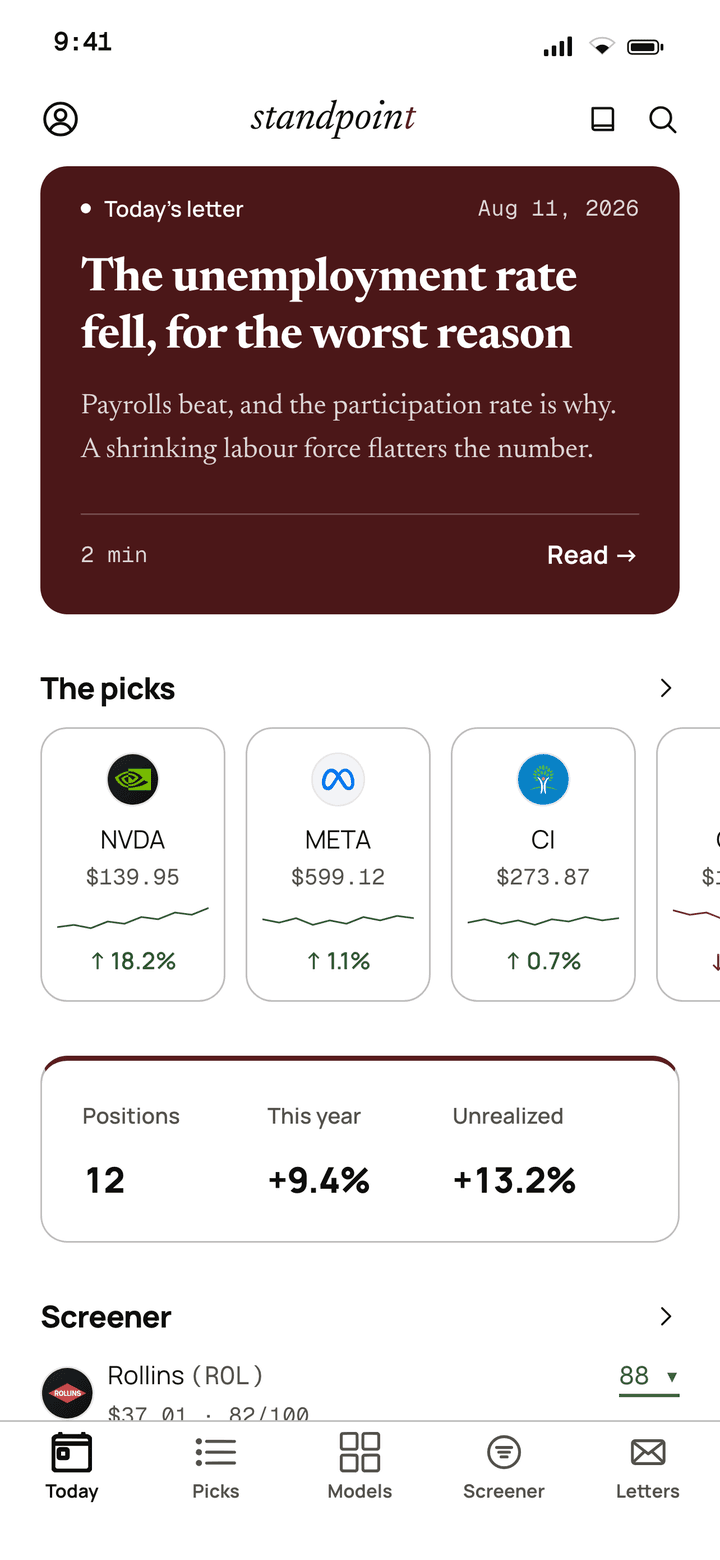
StandPoint is a single, calm place to read the club's thinking, follow its stock picks and model portfolios, and track your own investments against the club's. Everything centres on Salomon, the person who runs the desk and writes to members.
A free account has every tool and the archive; the books have the calls, bought from the website one, two or all three, at a flat price that never takes a cut of your assets. The app is for iPhone. There is no dark mode by design, it reads more like a private bank's annual report than a typical finance app.
App screen · sample data
Creating a free account
Create a free account at standpointhq.com/join. Every tool and the archive are free, for good; the books add the calls, bought on the pricing page.
You begin on the StandPoint website rather than the app. Create a free account at standpointhq.com/join with an email address: no card, no end date, not a trial. That gives you every tool, the screener, levels and fundamentals on every name, the themes, the watchlist, your own book, the feed and the connector, and the archive of every position the desk has closed, thesis and exit included. The email you join with becomes the one you sign in with, on the web and in the app.
The books add the calls: the picks as they are published, the Overdrive list of the week you join, the live model portfolio and the morning brief. When you want them, they are bought on the pricing page, one, two or all three, at a flat price. Fourteen days to change your mind, refunded in full.
Note
There are no sign-ups inside the app. Create the account on the website first; the sign-in screen then recognises your email.
Signing in (no passwords)
You sign in with the email on your account, a one-tap link or a 6-digit code. No passwords, ever.
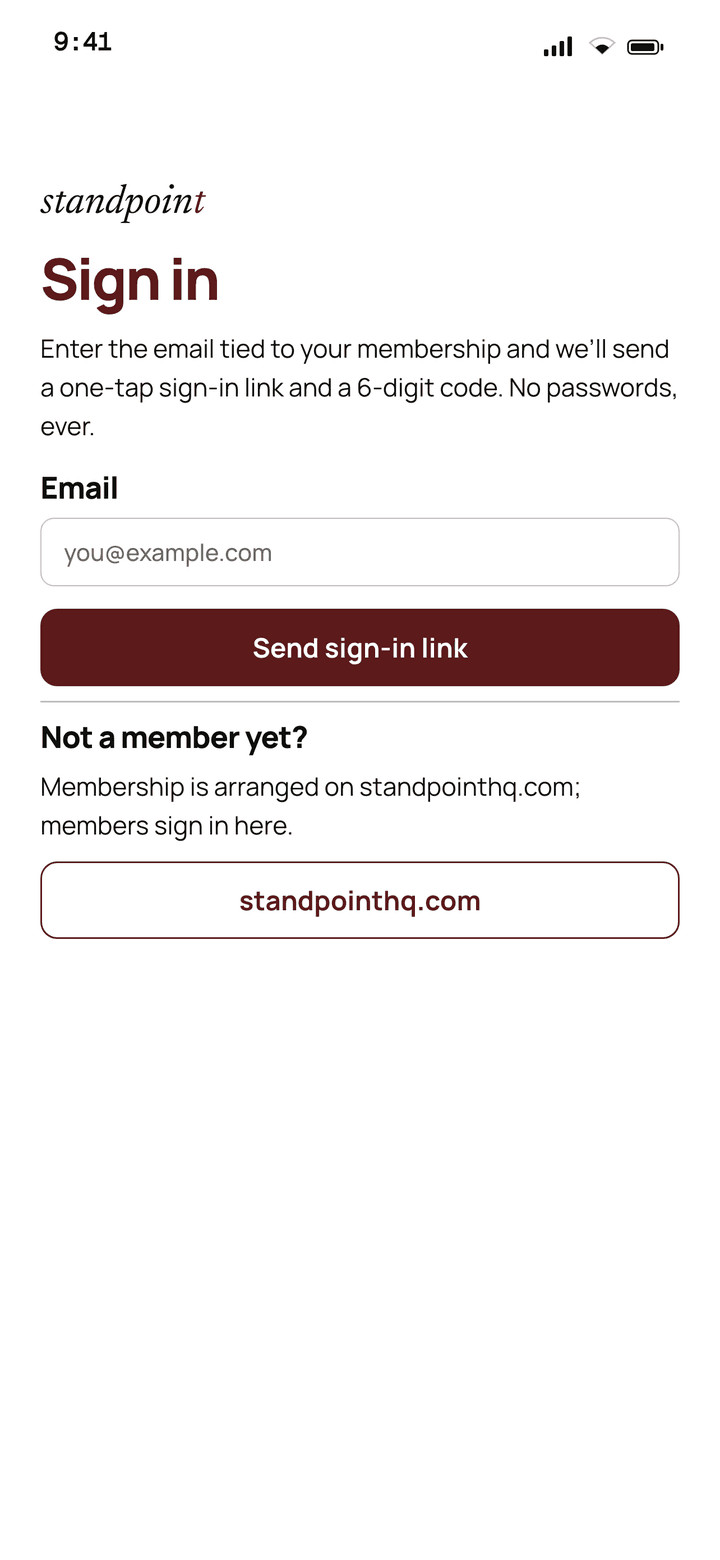
StandPoint has no passwords. You sign in with the email on your account, and we send you two ways in: a one-tap link that opens the app and signs you in automatically, and a 6-digit code you can type instead.
- Open the app and enter the email on your account.
- Tap “Send sign-in link”.
- Open the email we send you and either tap the one-tap link on your iPhone, or copy the 6-digit code.
- If you used the code, type it into the app. You'll briefly see a “Signing you in” screen, then you're in.
Tip
You can also paste the sign-in link manually. If the code doesn't arrive, use “Resend code” (there's a short countdown so it can't be spammed), or “Use a different email”.
App screen · sample data
The welcome tour
A one-time, three-screen intro before you sign in, you only ever see it once.
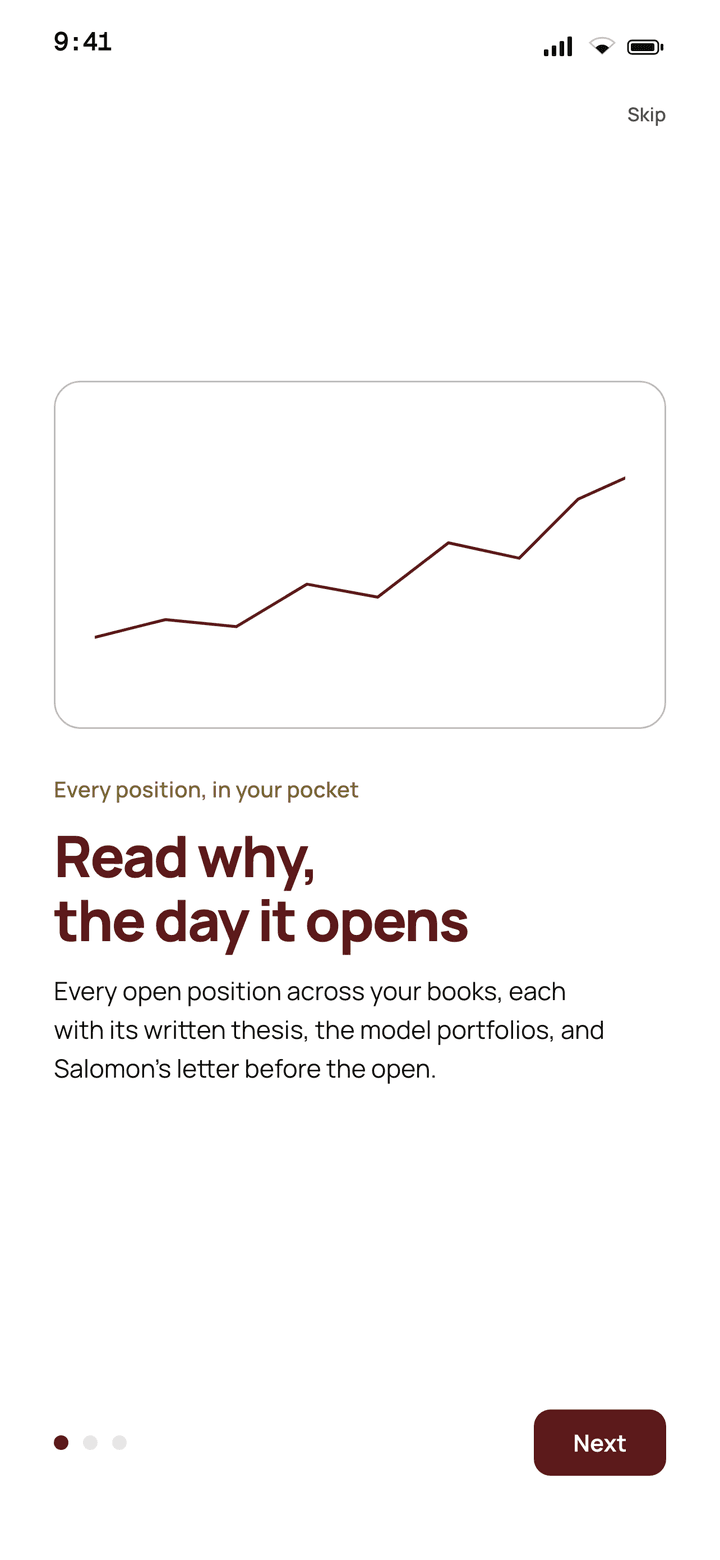
The first time you open the app, before signing in, you get a short three-screen swipeable introduction. Each screen has a small preview illustration and a headline:
- “Read the desk each morning”, Salomon's morning letters, every open pick, and the model portfolios, in one place.
- “Track your book against ours”, add your own positions to see live profit/loss, sector mix, and how closely you track the club.
- “Quiet alerts when it matters”, a gentle notification when the desk publishes or exits a name you hold, plus quick lookup of any S&P 500 company.
Note
Progress dots and a Next button sit at the bottom (Next becomes “Get started” on the last screen). A Skip link in the corner jumps you ahead. You only see this tour once.
App screen · sample data
Getting around: the five tabs
Today, Picks, Portfolios, My Book, and More sit along the bottom of every screen.
Along the bottom there are five tabs: Today (your daily home screen), Picks (the archive and track record, and the open positions of the books you hold), Portfolios (the club's model portfolios), My Book (your own holdings), and More (account, reading, and everything else).
Every tab gives a subtle tap when you switch, and you can pull down to refresh on almost every screen.
Note
Lose your connection and a banner appears: “Offline, showing saved data. Prices may be stale.” You can still read anything you looked at recently.
02 · On the web
The web app
Everything in the app is also at standpointhq.com once you sign in, laid out for a larger screen. Same books, same numbers, same sign-in. This section walks the site's navigation, item by item.
Signing in on the web
Email, then a link or a six-digit code. No password.
Go to standpointhq.com and choose Sign in. Enter your email, and a link and a six-digit code arrive within a minute. Open the link on the device you are reading on, or type the code on the sign-in page of any other.
A session lasts thirty days on a device you keep using. Every device you are signed in on is listed under Account, Security, where you can end any of them.
Tip
The welcome email you receive when you join carries a sign-in button good for forty-eight hours, so the first sign-in is one tap.
Dashboard
Your home page on the web: what changed since your last visit, your book, the open picks, the latest letter.
The Dashboard opens on what happened since you were last here: new letters, picks opened and closed. Under it, your book's value and change this year at live prices, the open picks ranked by return, the latest letter, and a teaser of the nightly screen.
The footer of the page shows your renewal date and links to your account.
Picks and the archive
One book at a time: the track record card, the open positions, and every closed position behind it.
Picks shows the open positions of one book, with a switch between the books you hold. The card at the top is that book's own closed record and opens the archive, where every closed position sorts and filters by year, outcome and tag. A free account reads the record and the archive; the open positions come with the book.
A pick's page carries the thesis, the updates, the levels and a chart. Follow it to be told when it changes, or add it to your book with the desk's entry prefilled. Europe positions do the same in euros.
Portfolios and Overdrive
The model portfolios with their weights and changes, the mirror tool, and one list a year for the S&P Book.
Portfolios lists the model portfolios you can read, each with its return beside its benchmark. Open one for the mandate, the composition, every weight and the log of every change. Mirror portfolio sizes the weights to an amount and puts them into your book.
For the S&P Book, the same page switches to Overdrive: the list written on the first session of each year since 2020, held until December, with every name and its return beside SPY.
Screener and tomorrow's movers
The nightly reversion board across your books, with filters you can save, and the 15:30 movers list.
Screener is the end-of-day board: every name in your books ranked by how far it has stretched from its own trend, with the same filters as the app, presets, sector, levels, earnings and price history. Save a screen and switch on its alert to be told when a new name enters it.
S&P Book members also find Tomorrow's movers under the title: the ten names ranked likeliest to make a big move next session, with the odds and the reasons. It ranks the size of the move, not its direction.
Letters
The public letters and, for members, the Europe book's letters in French, with your place kept.
Letters is the archive of the Morning Chronicle and the longer pieces, with tags and a start-here shelf. Members see a switch to the Europe book's letters, written in French.
Each row carries a mark: a dot for a letter you have not opened, a ring for one you started. Come back to a letter you left and the page offers to resume where you stopped.
Me: your book and positions
Your holdings at live prices, against a benchmark, with the same add, sell and import tools as the app.
Me is your book: value, cost, unrealised and realised gain, sector mix, your overlap with each model portfolio and your return against SPY or a portfolio. The journal and the share link live here too.
Positions is the table behind it: add a lot, paste a CSV from your broker, edit, sell all or part, and reopen a closed one. Europe holdings sit in their own table, in euros, never summed with the dollars.
Account
Billing, invoices, notifications, language, security and your data, all from the header.
Account, top right of every page, holds your plan and renewal date, the Stripe portal for your card and invoices, cancel and resume, and your investor profile.
Notifications sets which emails you receive and mutes push categories on your devices. Security lists your sessions. Data lets you change your email, download everything you have given the desk, or ask for the account to be deleted.
03 · Today
The Today tab
Where you land each day, the desk's important things, stacked in one calm column.
Your daily home screen
A personal greeting, your book summary, the latest letter, today's reversion names, open picks, and portfolios.
Today greets you by name, “Welcome back, [your name]”, with a “Member since…” line, and a search icon in the corner to look up any ticker instantly.
Below that it stacks the day's important things: your book (a quick summary card, if you've added positions), the latest letter from Salomon with a preview, the day's reversion names, the club's open positions, and cards for each model portfolio.
App screen · sample data
Reversion today
A short list of S&P 500 names that look most oversold today, most stretched first.
“Reversion today” shows the S&P 500 companies that look most oversold or stretched-down today, with a note like “3 S&P 500 names oversold today, most stretched first.” Tap any name to see its profile, or “All 500 names →” to open the full screener.
Tip
Reversion is a 0-100 read of how stretched a name is versus its own trend. Higher means more oversold. See “The reversion model” for the full explanation.
Searching from home
The search icon in the corner of Today looks up any S&P 500 company or US-listed ETF instantly.
Tap the search icon in the corner of the Today screen at any time to look up a ticker or company name. Matching results appear instantly, and tapping one opens that company's full profile, its “second opinion”.
04 · Picks
The Picks tab
The club's open positions, each a considered thesis, sized by conviction.
The picks list & track record
Open positions, most recent first, above a Track record card summarising every closed pick.
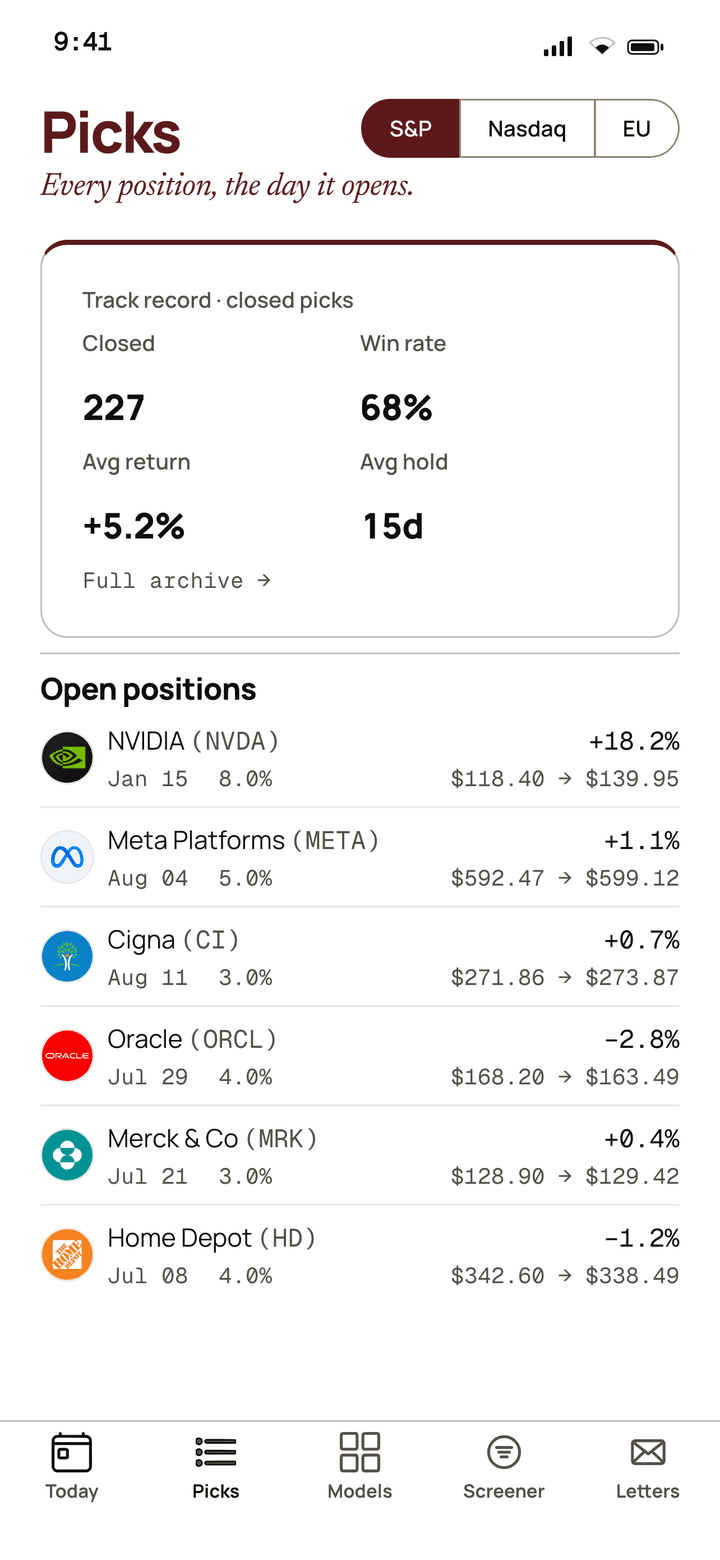
The Picks tab lists the stocks the desk currently likes, most recent first. Each row shows the ticker and company, its return so far (green for gains, a deep red for losses), a small reversion tag, and the entry date, entry price, last price, and how big the position is (its weight).
At the top, a Track record card summarises every closed pick: how many have closed, the win rate, average return, and average holding time. Tap it to open the full Archive.
App screen · sample data
Reading a pick, the full thesis
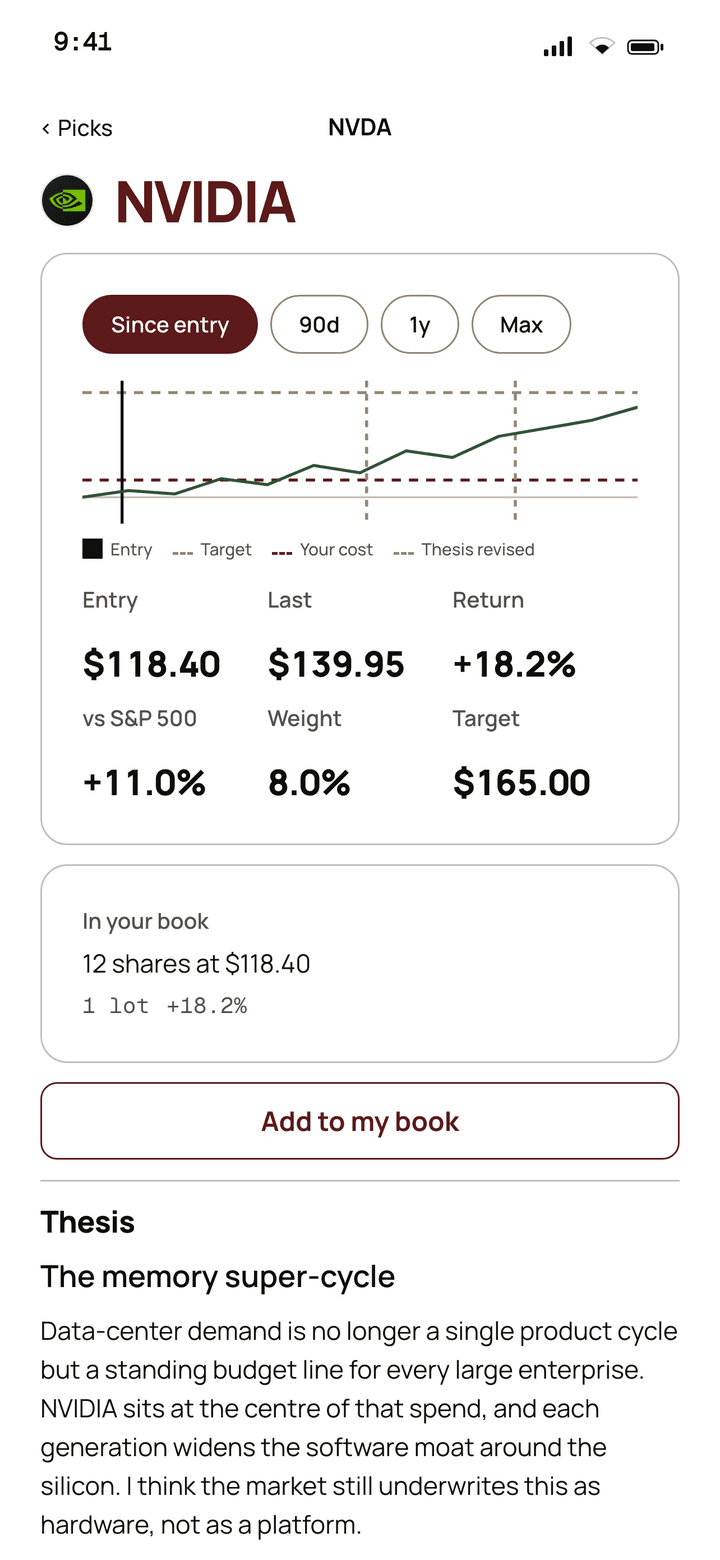
Tap any pick for the whole write-up: chart, key numbers, the thesis, tags, and its history.
Opening any pick gives you the whole write-up: the ticker and company (and, if closed, when), a small price chart you can toggle between Since entry / 90 days / 1 year, and the key numbers, entry price, last price, return, how it's done versus the S&P 500, its weight, and the price target.
Below that sits The Thesis, Salomon's written argument in proper editorial prose. If the pick is closed, an Exit note explains why the club sold. A Thesis history section keeps earlier versions so you can see how the thinking evolved.
Tip
The “Add to my book” button pre-fills the ticker and price, so you can add the name to your own holdings in a couple of taps.
App screen · sample data
05 · Portfolios
The Portfolios tab
The club's model portfolios, “sleeves” the desk maintains. Slow to construct, benchmarked honestly.
Model portfolios (sleeves)
Each portfolio is a card showing when it went live, its return since inception, and how it has done against its benchmark.
The Portfolios tab shows the club's model portfolios, curated baskets the desk maintains. Each card shows when it went live, its name, its return since inception, how it has done versus its benchmark (e.g. the S&P 500), and the number of holdings.
Model sleeves the desk maintains. Slow to construct, benchmarked honestly.
The Compounder
+41%Steady Yield
+9%Deep Value
−2%Illustration · sample data
Inside a portfolio
Mandate, headline returns, a performance chart with drawdown shaded, full composition, and a rebalance log.
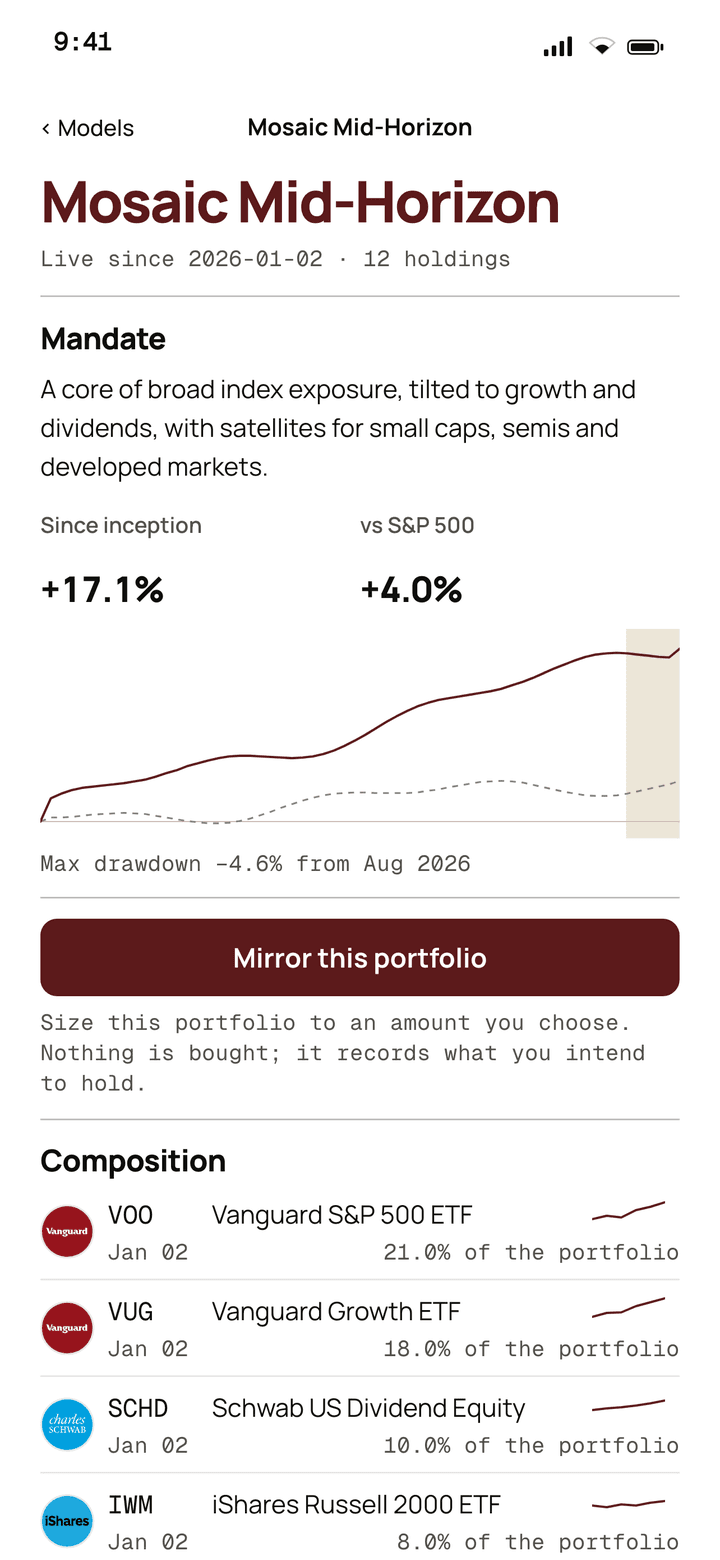
Tapping a portfolio opens its detail view: the name and how long it's been live, its Mandate (a plain statement of what it's trying to do), and headline numbers, return since inception and versus its benchmark.
A performance chart shows cumulative return over time with any drawdown period shaded in (“Max drawdown −X% from [date]”). Composition lists every holding with a tiny sparkline, its return, weight, last price, when it was added, and a reversion tag. A dated Rebalance log records what the desk added or trimmed, and an expandable About section gives more background.
App screen · sample data
06 · My Book
The My Book tab
Your personal portfolio tracker, your holdings, measured against the club's.
Your book at a glance
A summary card with positions, the change since the start of the year, market value, and unrealized P&L, plus overlap, drift, and sector mix.
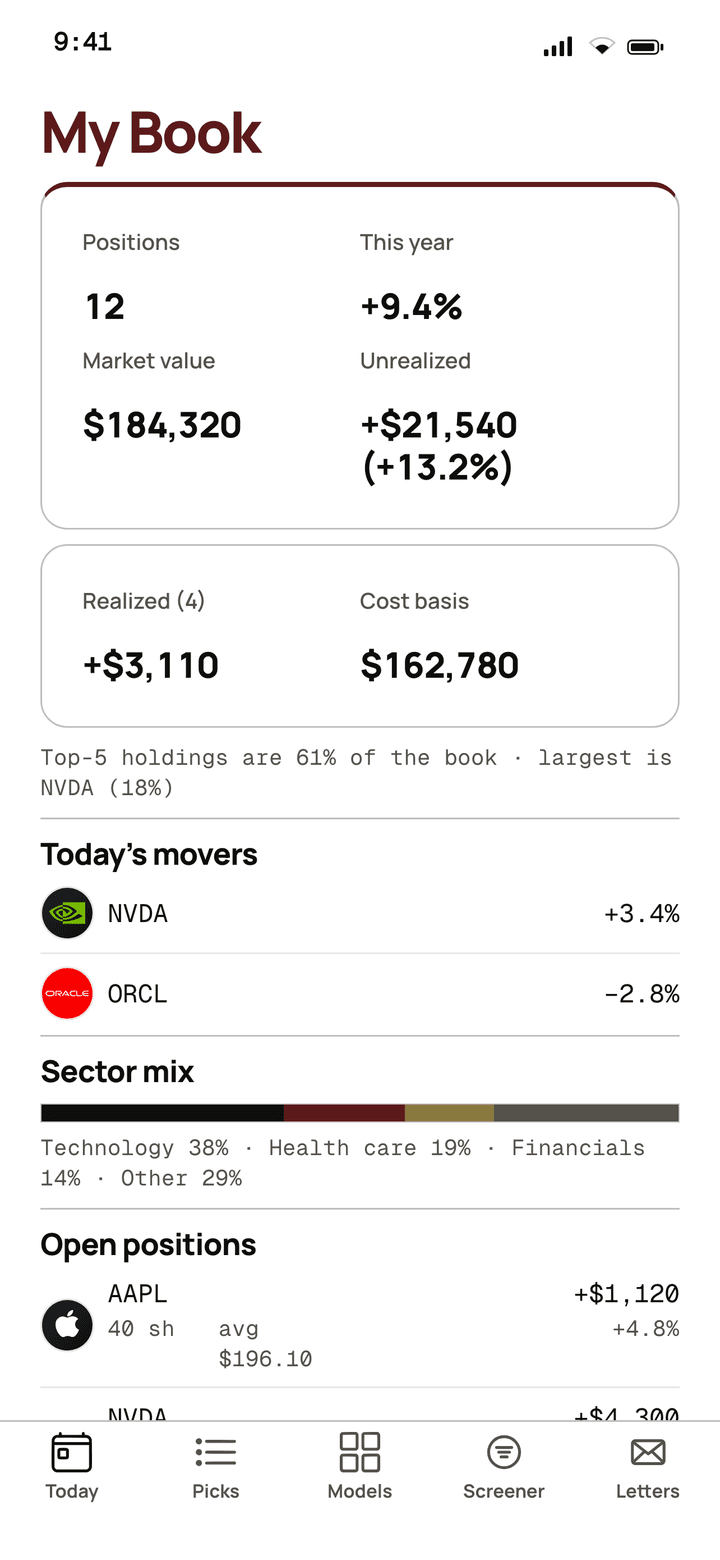
My Book is your own portfolio, measured against the desk's. A summary card shows the number of positions, the change since the start of the year, total market value, and unrealized profit/loss in dollars and percent (plus realized P&L and cost basis once you've sold anything).
Once you have holdings, it surfaces richer insight: Overlap with the desk (how much your book resembles each model portfolio, the “you mirror 68% of The Compounder” signal), return versus the benchmark, a concentration note, a sector-mix bar, dated Drift alerts, letters on your names, and a personal Journal.
Note
If your book is empty it prompts: “Add positions to see overlap with the desk's sleeves, P&L, and drift alerts.”
App screen · sample data
Adding & managing positions
From “Manage positions” you can add, edit, sell, remove, and bulk-import holdings.
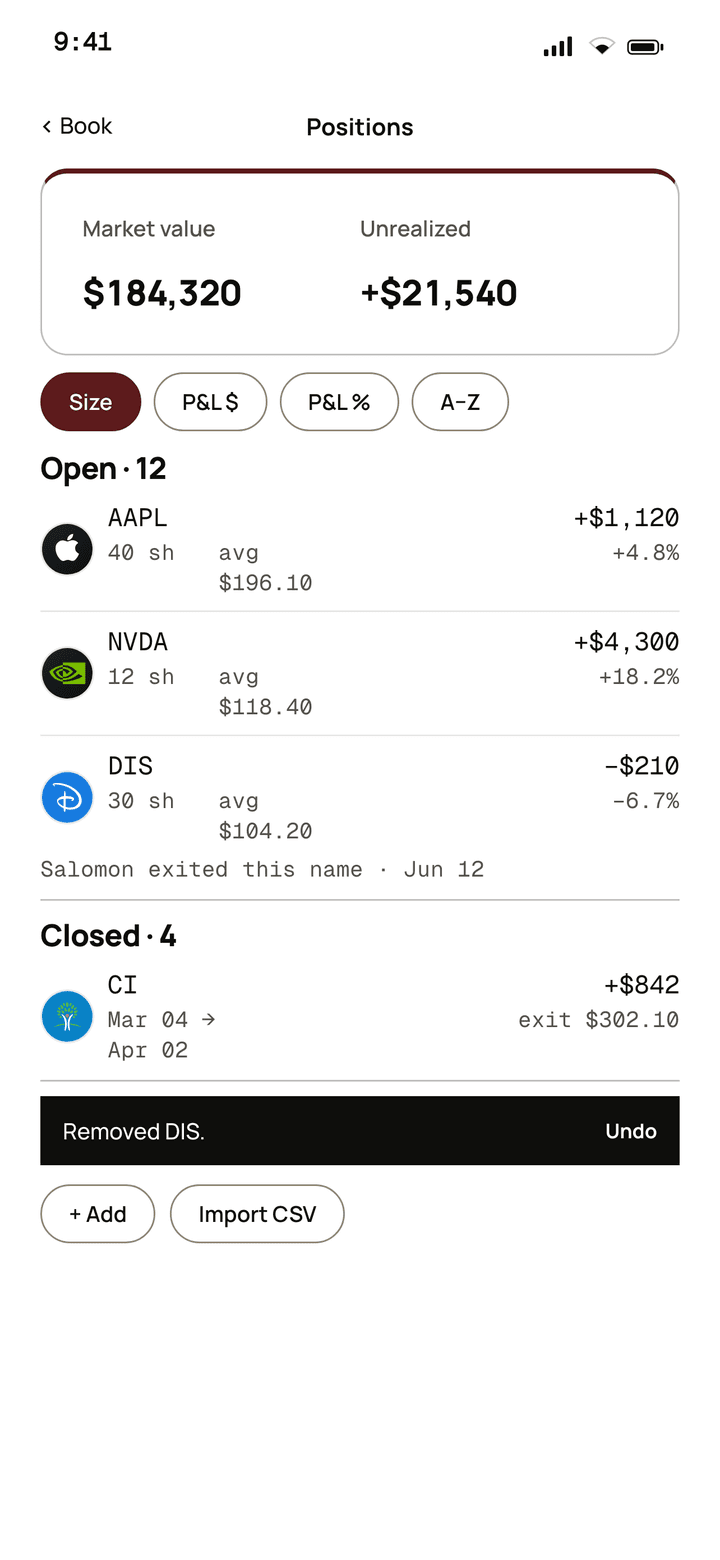
Tap “Manage positions” for the full editor. Open positions each show ticker, shares, unrealized gain/loss, cost, last price, weight, and acquisition date. If the club has sold a stock you still hold, a red note reads “Salomon exited [date].”
- Tap “+ Add” to enter a ticker, number of shares, cost per share, and the date you bought it.
- For any position, use Sell or Remove.
- Coming from a pick? The form pre-fills the ticker and price for you.
App screen · sample data
Selling & closed positions
Selling shows your realized P&L before you confirm; closed positions are listed separately.
Selling a position opens a sheet where you enter the exit price and date. It shows the realized profit/loss before you confirm, with a button like “Confirm, realize +$1,240.” Closed positions are then listed separately, each showing what you made or lost.
Importing many positions (CSV)
Paste many holdings at once, one per line: ticker, shares, cost, date. You get a report of what imported.
Import CSV lets you paste in many positions at once, one per line as ticker, shares, cost, date. It checks each line and gives you a report of what imported and what was rejected, and why, so nothing silently fails.
Mirror a portfolio
Copy a model sleeve into your book: choose a sleeve, enter a dollar amount, preview the shares, and add them all.
Mirror a Portfolio is a shortcut to copy one of the club's model portfolios into your own book at a size you choose.
- Pick which sleeve you want to mirror.
- Enter a dollar amount (e.g. $25,000).
- Tap Preview to see exactly how many shares of each holding that buys at today's prices, it warns if any name can't be priced.
- Tap “Add these to my book” to add them all at once.
07 · Reading & research
Reading & research
Letters, the archive, the reversion screener, and a full profile for any company, all cross-linked.
Letters
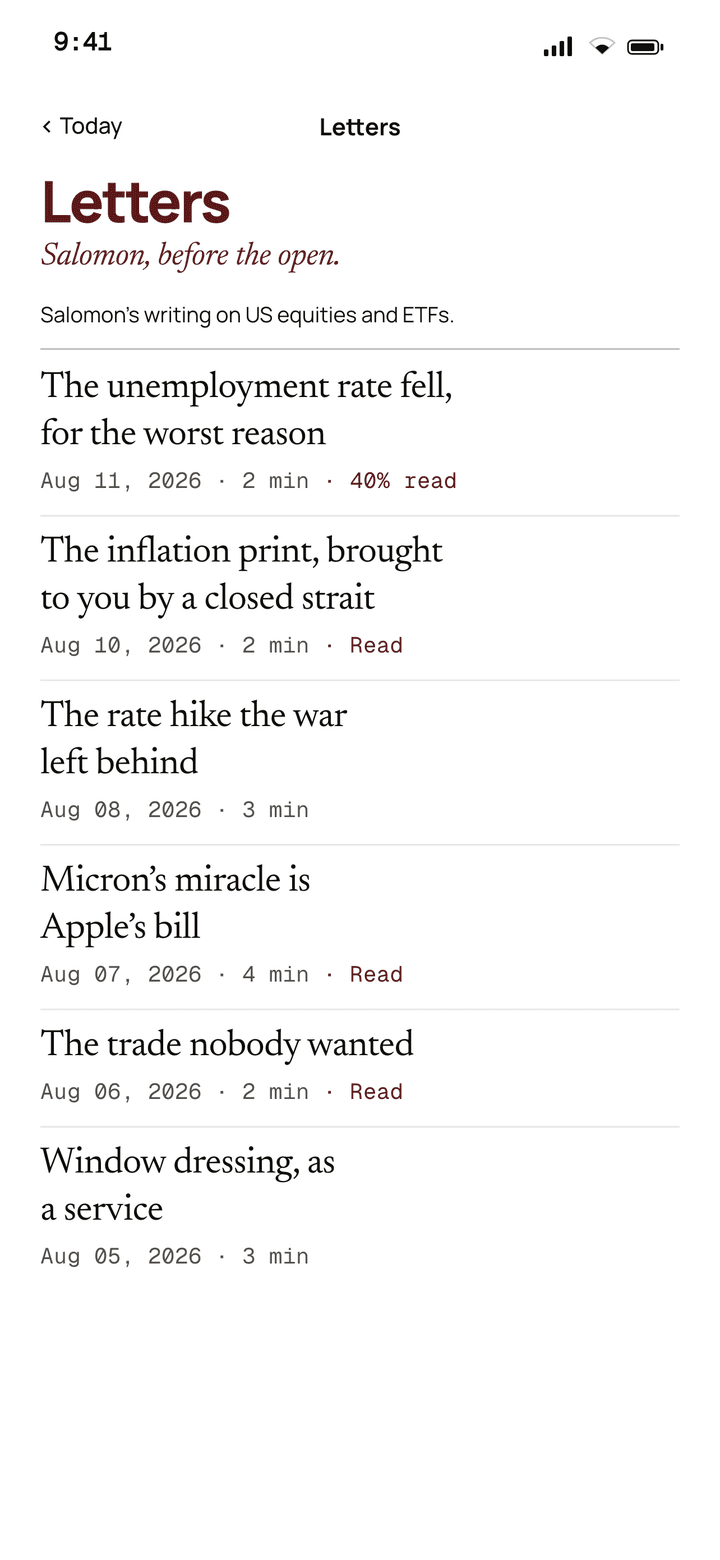
Salomon's writing on US equities and ETFs, in a clean, magazine-style reader.
The Letters list shows each of Salomon's letters with its title, a two-line preview, the month, reading time, and a tag. Reading a letter gives you a clean, serif, magazine-style experience, headings, paragraphs, and bullets.
Any company names mentioned appear as tappable chips at the bottom (“Names mentioned”) that jump you straight to that company's profile.
App screen · sample data
The Archive (closed picks)
Every pick the club has ever closed, sortable by exit date, return, hold length, or ticker.
The Archive holds every closed pick. Up top: total closed, win rate, average return, and average hold time. Below, a scrolling list you can sort by Exit date, Return, Hold length, or Ticker (tap a sort chip again to flip the order). Each row shows the final return, the dates held, how many days, and entry→exit prices. Tap any to read the full closed-pick write-up.
The reversion model (screener)
One end-of-day read per S&P 500 name, blended into a 0-100 score for how stretched it is versus its trend.
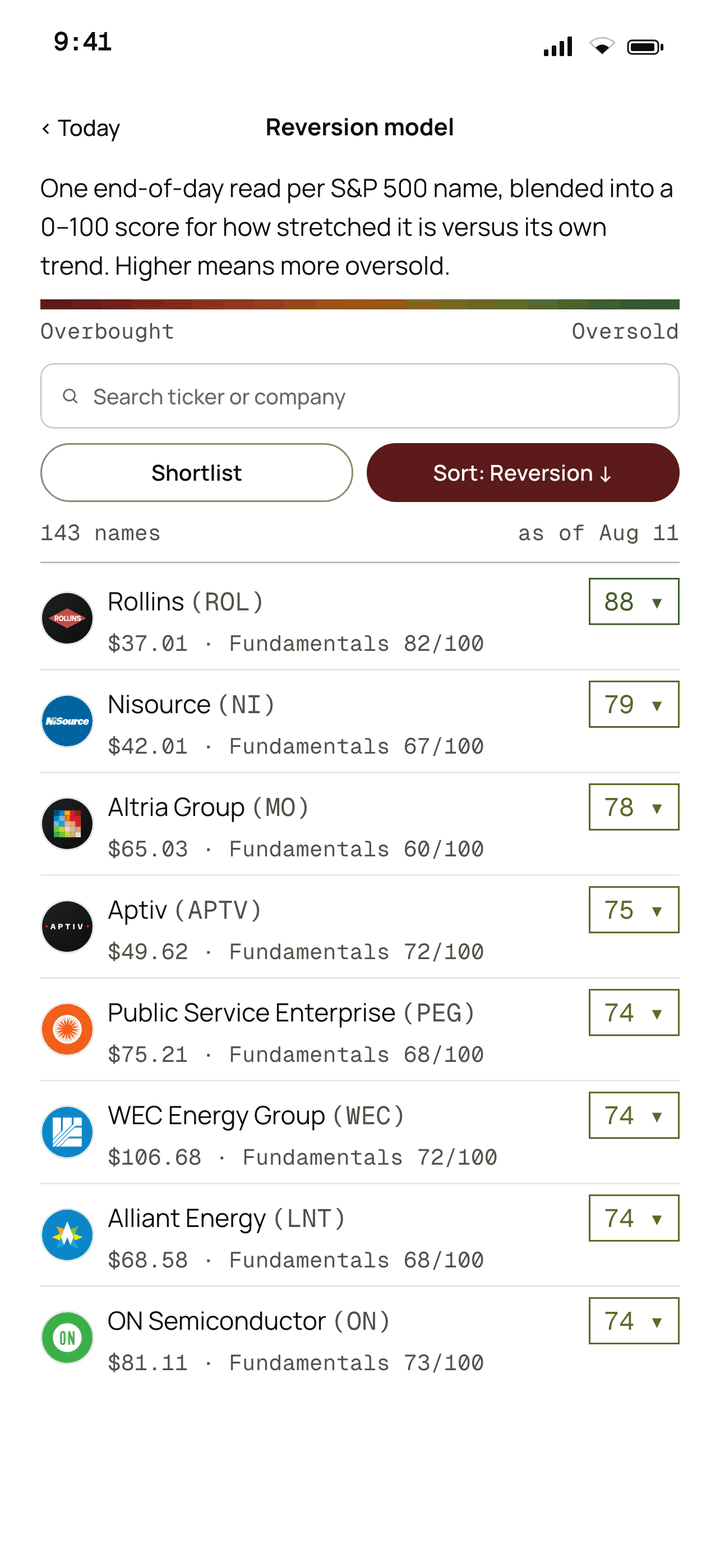
The reversion model covers roughly all 500 S&P names: “One end-of-day read per S&P 500 name, blended into a 0-100 score for how stretched it is versus its own trend. Higher means more oversold.”
A colour legend reads green = oversold (≥75), gray = neutral, oxblood = overbought (≤25). A search box finds a company; filters toggle between a curated Shortlist and All 500 and sort by Reversion, Score, or A-Z. Each row shows last price, price target and upside, the reversion score with a little meter, and a fundamental score out of 100.
Heads up
If the price data is behind, the screener tells you plainly with an “as of” date rather than pretending the numbers are live.
App screen · sample data
Ticker profile (“second opinion”)
A full profile for any company: price, returns, model scores, the house view, and every mention.
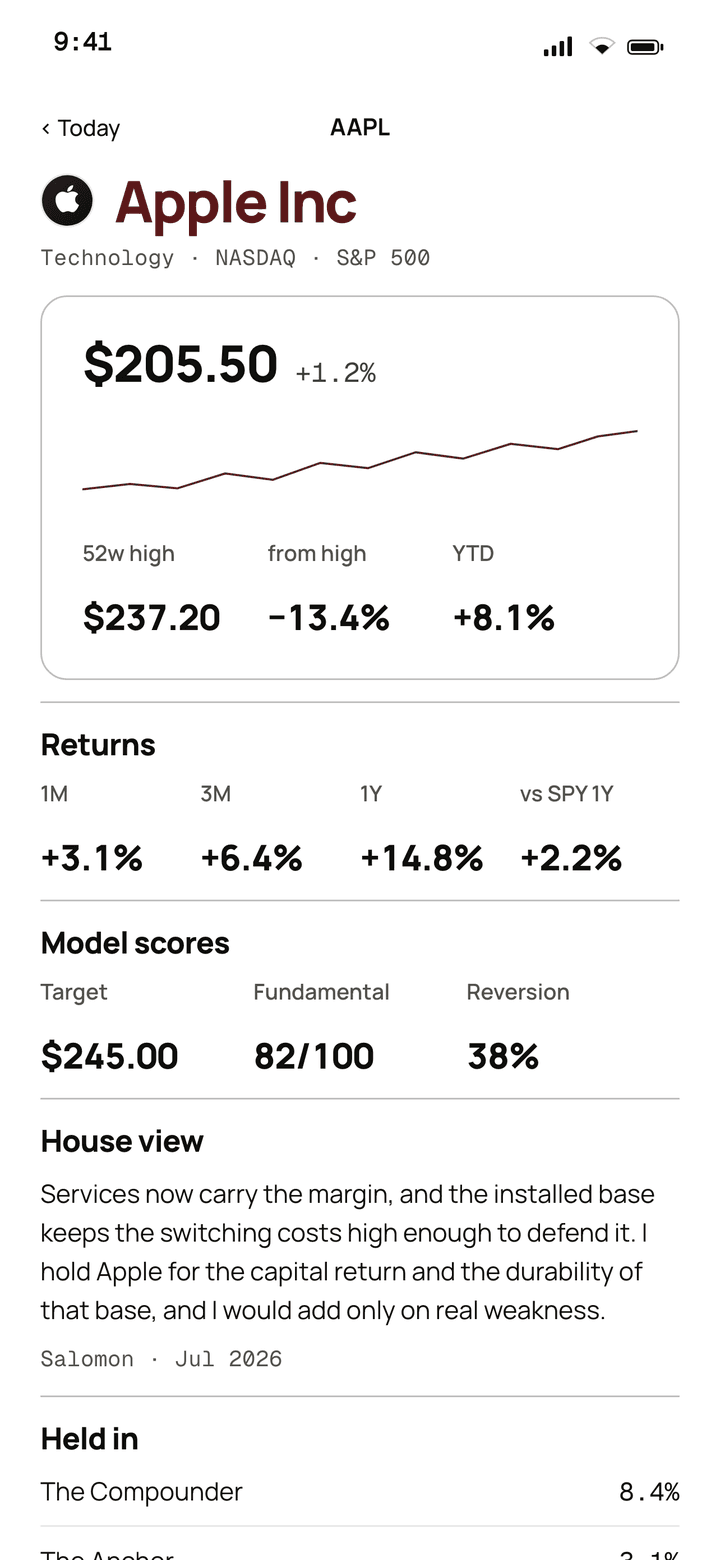
Search any company to get its profile: name, sector, exchange, and whether it's in the S&P 500. A price card shows last price, today's change, a chart, the 52-week high and distance from it, and year-to-date return; Returns shows 1-month, 3-month, 1-year, and versus the S&P.
You also get Model scores (price target, fundamental score, reversion score), the House view (the club's written opinion, signed by Salomon and dated), a summary compiled from his letters, which portfolios hold it, letters mentioning it, and tickers it's “mentioned alongside”.
Tip
No coverage yet? Tap “Request coverage” to ask the desk to write about the name, it confirms with “Coverage requested ✓”.
App screen · sample data
Looking up a ticker
Type a ticker or company name and matching results appear instantly.
The ticker search is a simple box: type a ticker or company name and matching results appear instantly. If nothing matches, it says “No match in the S&P 500 + US-listed ETF universe.” You can reach it from the search icon, the More tab, or the screener.
08 · Account & billing
Account & billing
Reached from the More tab via your name card, who you are, your plan, your devices, and your data.
Your account
Your name, email, role, and how long you've been a member.
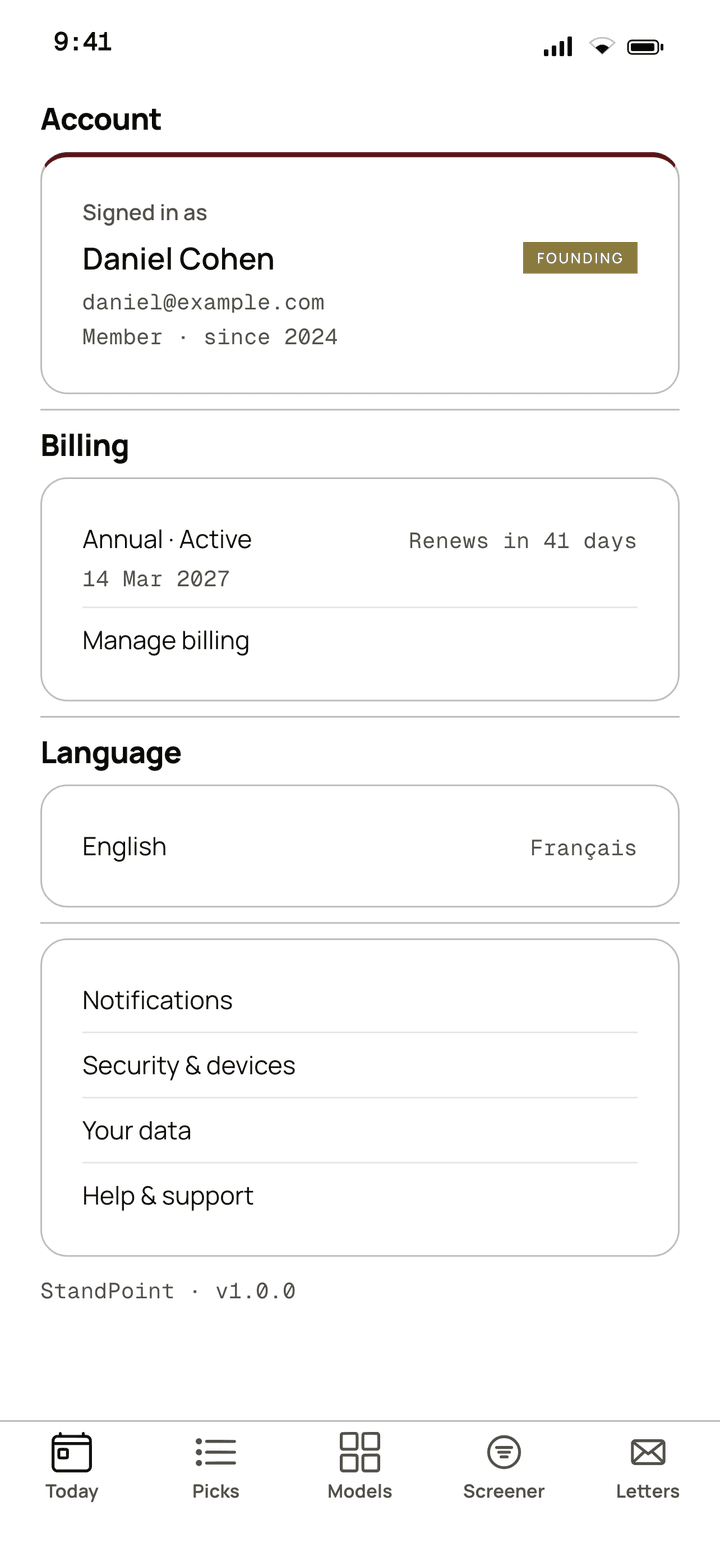
From the More tab, tap your name card to open your account. It shows who you're signed in as, name, email, your role, and how long you've been a member.
App screen · sample data
Billing & plan
Your plan and status, when it renews or ends, and a secure “Manage billing” portal.
The Billing section shows your plan and status and when it renews or ends. A “Manage billing” button opens the secure billing portal in a browser, where payment details are handled, StandPoint never stores your card.
Language (English / Français)
Switch the app between English and Français from your account.
Under Language you can switch the app between English and Français. Your choice is remembered on this device and synced to your account, so the website and transactional emails follow the same preference.
Devices & signing out everywhere
See every place you're signed in, and end all sessions at once if you need to.
Devices lists everywhere you're signed in, device, country, and last used, with “this device” marked. A “Sign out everywhere” button ends every session at once, which is the fastest way to secure your account if a device is lost.
Your data (email, export, deletion)
Change your email, export your data, or request account deletion.
Under Your data you can Change email (a confirmation link goes to the new address), Export my data (bundles up your data to save or share), and Delete my account (sends a deletion request to the desk).
Membership & support
Reactivate if you're alumni, contact the desk, or read the terms and privacy policy.
If you're alumni, a “Request to reactivate” button appears. Support links let you Write to Salomon (which emails salomon@standpointhq.com) and open Terms & privacy. The app version number and a Sign out button sit at the bottom.
09 · Notifications
Notifications
Quiet push alerts, only for the things worth interrupting you.
Turning on notifications & choosing types
Enable push, then pick exactly which alerts you want: new letters, new picks, drift, and billing.
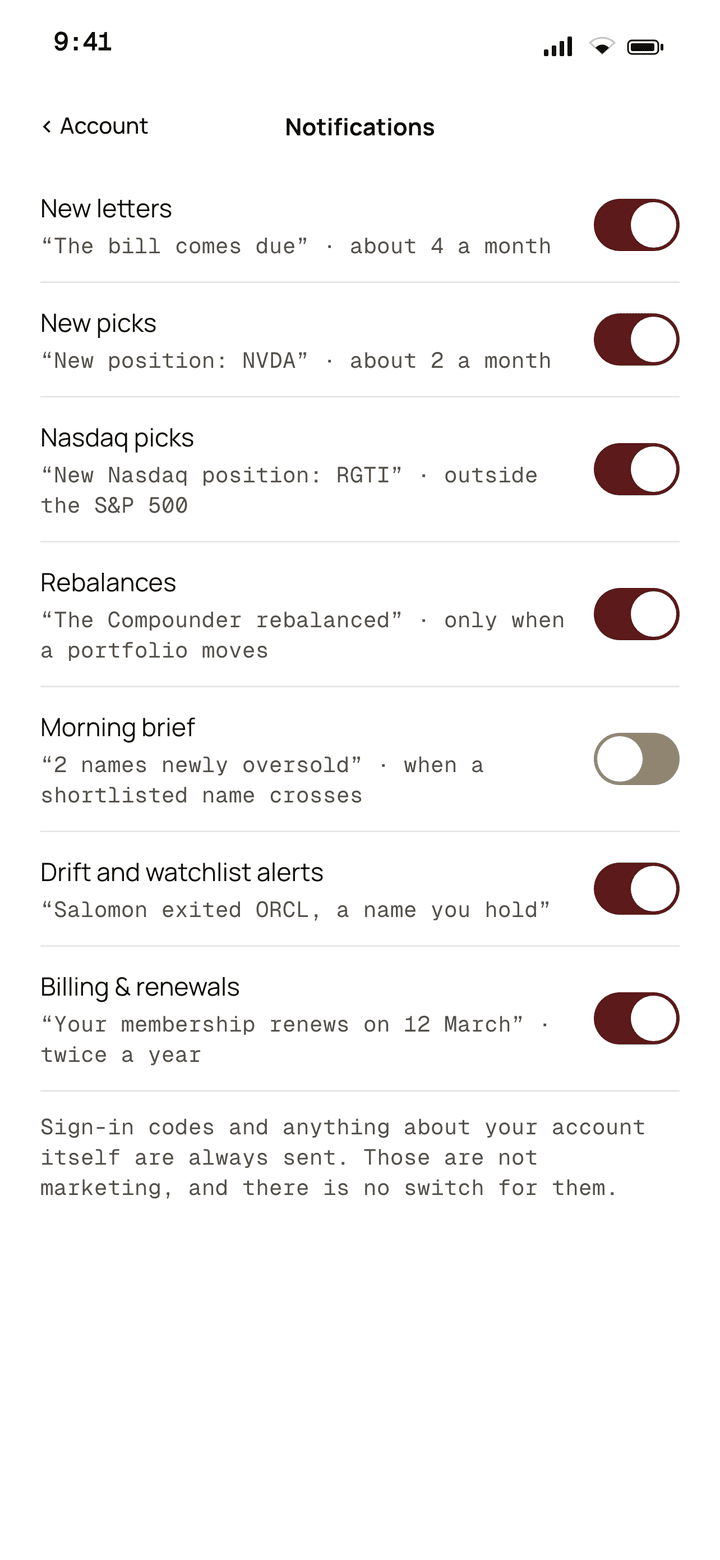
In your account, switch on quiet push notifications and pick exactly which ones you want. Each is a simple on/off toggle.
- New letters, when Salomon publishes.
- New picks, when the desk opens a position.
- Drift alerts, when the desk exits a name you hold.
- Billing & renewals, plan and payment reminders.
Note
Push only works on a real iPhone, on the simulator the app notes this. Notifications stay deliberately sparse; the club would rather stay quiet than cry wolf.
App screen · sample data
10 · Troubleshooting
Troubleshooting & FAQ
The handful of things members ask most, and how to put each right.
I can't sign in
Wrong code, expired or already-used link, or an unrecognised email, here's what to do.
If a code is wrong, a link has expired, or a link was already used, the app tells you plainly and lets you request a fresh one. Use “Resend code” (after the short countdown) or request a new link, and make sure you're using the exact email tied to your membership.
Heads up
If your email isn't recognised at all, you may not have created an account yet (standpointhq.com/join, it is free), or you may be using a different address than the one you joined with. Write to Salomon at salomon@standpointhq.com.
Prices look old, or I'm offline
The app keeps recently viewed content readable offline and is honest when prices may be stale.
If you lose connection, a banner reads “Offline, showing saved data. Prices may be stale,” and recently viewed letters, picks, and data stay readable. When you're back online, pull down to refresh on almost any screen to pull the latest prices and content.
Is there a dark mode?
No, the warm, paper look is deliberate. “A club has a single voice.”
There's no dark mode, and that's intentional. StandPoint is warm and paper-coloured throughout, closer to a private bank's annual report than a crypto exchange. As the design principle goes, “a club has a single voice.”
Contacting the desk
For anything not covered here, email the desk directly, a real person reads it.
For anything this guide doesn't answer, use “Write to Salomon” in your account, or email salomon@standpointhq.com directly. The tone throughout StandPoint is a real person writing to you, support is no different.
11 · Your feed
Your feed
A key lets your own software read StandPoint without you opening the app: an AI agent, a script, a spreadsheet. It reads what you can read, carries the proof with each pick, and never touches money.
What the feed is
Five read-only addresses under /api/v1/feed, answered with a key you make on the security page.
The feed is the same information the app shows, in a form a program can read: the picks you may see, your Overdrive list, the levels on a name, and which books you hold. Each pick carries the instant it was published and the price it was published at, the same two fields the public record stands on, so whatever reads it carries the proof along with the signal.
It is information only. Nothing in the feed can place an order, change a setting or move money. Your software decides what to do and trades at your own broker, under your own responsibility.
Making a key
Account, Security, API keys. Name it for the tool that will use it, copy it once, revoke it when the tool is gone.
- Open Account, then Security. The API keys section sits under your active sessions.
- Give the key a short name for the tool that will use it: “Claude”, “trading bot”, “sheet”. One key per tool, up to five.
- Copy the key when it appears. It starts with spk_ and is shown once; the list keeps only its first characters afterwards.
- Put it in your tool's configuration, never in a file you share. If it leaks or the tool is retired, revoke it here and make another.
Heads up
A key reads everything your account reads. Treat it like a password.
Calling the feed
Send the key as a bearer token. The front door tells you the rest.
Every address takes the same header: Authorization: Bearer spk_… . Start at the front door, which answers with who you are, the books you hold, the addresses and the rules:
curl -H “Authorization: Bearer spk_…” https://standpointhq.com/api/v1/feed
Then, for example: /api/v1/feed/picks for the positions held now, /api/v1/feed/picks?status=closed for the archive, /api/v1/feed/picks?since=2026-10-06T13:30:00Z for anything published since a given instant, /api/v1/feed/overdrive for your list, /api/v1/feed/levels/NVDA for a name's levels, /api/v1/feed/books for what you hold.
Six hundred reads an hour per key, which is one a minute with room for a burst. Over that the answer is a 429 with a Retry-After header saying how long to wait.
What each address returns
The fields are a contract: once your script reads them, they do not move.
A pick: id, book (sp, nasdaq or europe), ticker, name, side (always long), status (open or closed), publishedAt (UTC) and publishedAtNewYork, entryDate, priceAtPublish, target, stop, weight. An open pick also carries the last close on file (lastPrice, lastPriceDate) and the unrealised return against the published price (currentReturnPct, gross); a closed pick carries closedAt, priceAtClose and returnPct. Plus a url for a human to read the thesis.
Your Overdrive list: the start of your membership year, the day it is held until, each name with its entry price and current price, the list's return and SPY's over the same period. Reading it the first time in a membership year creates it, exactly as opening the screen does.
Levels: the newest session's pivot zones for one name, strongest first, plus the daily, weekly and monthly opens with their sigma bands and 50/100/200 EMAs, the close they were drawn against, the 52-week range, and the desk's target and stop if it is an open pick. US tickers and Europe symbols. A name outside your books answers 404, the same as a name that does not exist.
A ticker profile (/api/v1/feed/ticker/NVDA): everything the desk knows about one name in one call, the way the ticker page shows it. Price and returns, the reversion score and the desk's own beta, the desk's written view, the next report with its consensus, fundamentals ranked against the book, themes, whether it is an open pick or on your watchlist, and the full levels. Europe names return price, levels and the pick; fundamentals are not held for them yet.
The screener (/api/v1/feed/screen): the Model tab's board. Every name in your books with its reversion score, momentum stance, drawdown, position in its sigma bands, distance to the nearest level, days to the next report, a few fundamentals and its themes, with open-pick and watchlist flags. Filter by book, sector, theme, text or mine; sort by reversion, fundamental, ticker, sigma, confluence, support, drawdown, theme or earnings; page with limit and offset. The whole universe of each book.
Books: the books you hold, and where each book's names are listed publicly.
The public record at /api/v1/public/record needs no key: every pick ever published, with its closes, as JSON or CSV, plus a summary per book (inception, closed picks by year, win rate, mean and weighted mean return, mean excess over the benchmark, the share of positions that beat it) and, at /api/v1/public/record/hash?date=, a daily hash of the rows published or closed that day, stored the first time it is computed and never rewritten, so the record is timestamped by something StandPoint cannot edit afterwards.
Connecting Claude
Add StandPoint as a connector in Claude, sign in with your account, and ask in words what the desk published today.
StandPoint is an MCP connector: Claude on the web, in the desktop app and on your phone can read it directly. It offers nine read-only tools: today's picks, open picks, closed picks, the public record, your Overdrive list, the full levels for a name, a complete profile of a name (price, fundamentals against the book, the next report, themes, the desk's view, levels), the screener with its filters and sorts, and your books. Every pick comes back with the instant it was published and the price it was published at.
In Claude, open Settings, then Connectors, then Add custom connector. Name it StandPoint, paste the address https://standpointhq.com/api/v1/mcp and choose Add, then Connect. Claude sends you to StandPoint to sign in with the email on your account and approve; you are back in Claude a few seconds later. Switch StandPoint on in the chat's + menu, then ask: “What did the desk publish today?”, “Where are the levels on NVDA?”, “How is my Overdrive list doing?”
Not sure what to ask? Ask Claude “What can StandPoint do?”: it answers from the briefing the connector sends it. And the chat's + menu lists StandPoint's ready-made questions (today's picks, the open positions, the full picture on a name, where a name sits on its levels, the most stretched names, names sitting on a level, who reports this week, your Overdrive list, the track record): one click asks it well.
It reads what your account reads: on a free account the tools and the archive; with a book, the live calls as well. The full walkthrough, with each client's own menu names, is under Account, Connect an assistant.
What you connected appears under Account, Security, Connected apps. Disconnect it there and Claude loses access at once. The assistant can read; it cannot trade through StandPoint. If you let it place orders, that happens at your broker, through your broker's own tools, under your responsibility.
Note
Custom connectors are available on Claude's paid plans. Once StandPoint is listed in Claude's connector directory, it will also appear under Browse connectors; until then, add it by address.
Connecting ChatGPT
Create the connector under Settings, Connectors, with Developer mode on, and sign in with your account.
- Open Settings, then Connectors. Under Advanced, switch Developer mode on.
- Choose Create. Name it StandPoint, paste https://standpointhq.com/api/v1/mcp, set Authentication to OAuth, then Create.
- ChatGPT sends you to standpointhq.com: sign in with the email on your account and approve.
- In a chat, enable StandPoint from the connectors menu and ask what the desk published today.
Note
As of October 2026; the menu names may move. The full walkthrough, for every client, is under Account, Connect an assistant.
Any other assistant
Claude Code, Cursor, a script, a spreadsheet: one address, and either a sign-in or a key.
In Claude Code: claude mcp add --transport http standpoint https://standpointhq.com/api/v1/mcp, then sign in when it asks. Other command-line agents that take an MCP address work the same way.
Anywhere else, paste the address where the client asks for an MCP server. If it offers to sign in, use that: you approve on standpointhq.com and there is nothing to copy. If it only takes a header, make an API key (see Making a key) and send it as Authorization: Bearer spk_… . Most clients accept the same configuration: { "mcpServers": { "standpoint": { "url": "https://standpointhq.com/api/v1/mcp", "headers": { "Authorization": "Bearer spk_…" } } } }
Whatever the client, it reads what your account reads and cannot trade. The step-by-step for each client is under Account, Connect an assistant.
What the feed is not
Information, not advice or execution. Your software, your broker, your decisions.
The feed carries what the desk published and when. It does not tell your software what to do, and nothing StandPoint sends is a recommendation to buy or sell for you in particular.
StandPoint never holds, routes or touches money. Any order your software places is placed at your broker, by your software, under your responsibility, including a bug in it, a key that leaked, or a read that arrived late.
A pick in the feed is the same pick members receive by push and email, at the same moment; the feed is not earlier, and it is not a different list. The record of every pick is public at /track-record.
Note
These three paragraphs are the feed's terms. The full disclosures apply as well.
Still stuck?
A real person reads every note.
If this guide doesn’t answer your question, write to the desk directly, or use “Write to Salomon” inside the app under your account.
Salomon@standpointhq.com